Oct 23, 2009 | Computer technology, News, Software
Windows 7 is upon us, ushering in the latest era of Microsoft?s Windows Operating System. Faster and more functional, with less bloat than previous iterations, Windows 7 has been introduced to a surprisingly receptive audience.
But all fanfare aside, the question of its compatibility with your system is of paramount concern. As has been the case with each version of Windows, successfully installing the package is contingent upon the present composition of your system.
To shed light on what requirements your system meets, Microsoft has released a helpful program that aids in highlighting what you?ll need before attempting to upgrade to Windows 7.
Called the Upgrade Advisor, this utility assesses your system, providing an analysis that will leave you with a clearer picture of your computer?s compatibility.
After launching the Upgrade Advisor, you?re met with a welcome screen that prompts you to begin.

Depending on the specifications of your system, the duration of the analysis varies, but it usually lasts just a few minutes.

Upon conclusion of the analysis, Upgrade Advisor produces a report that lists those areas which must be addressed before proceeding with the upgrade.

Without running the Upgrade Advisor, you should know that the minimum requirements for Windows 7 are:
- 1 Ghz CPU
- 1 GB of RAM
- 16 GB HDD
Seeing how well it?s been received, it?s understandable that you could be leaning towards upgrading to Windows 7. Before doing so, you might want to run the Upgrade Advisor.
Download it here.
Oct 21, 2009 | Computer technology, News, Software
Whether we?re typing out a quick memo or writing a letter to a friend, word processors are invaluable tools that provide the means to draft documents when needed. Word is the most widely used solution in this regard, but it?s packaged with Microsoft Office, a software suite that includes a host of other applications ? Excel, Powerpoint, etc. — that you may not require.
Free and easy to use, Abiword is an alternative for those who need just a word processor, freeing your computer from needless software that?s along for the ride.
Abiword works with every major operating system:
After editing a Word document at work, Abiword can continue editing it at home, allowing for seamless transitioning between the two formats.
This is a nice solution for those looking to keep their system limited to the barest essentials. If you ever have any questions about its use, feel free to contact one of us.
Abiword can be downloaded here.
Oct 19, 2009 | Computer technology, General, News, Software
Six games into the new NFL season, the contagious fanaticism of football season is upon us, from chatter at work to discussions amongst friends and family about how the teams are faring. As a devout follower of the NFL, having some means — any means — to watch the games goes without saying.
Thanks to the generous folks at NBC, Sunday Night Football is just a few keystrokes away.
While nothing quite tops the joy of watching a game in all its HD glory on your television, this new and free internet? service? offers a number of features that transcend the traditional viewing experience.
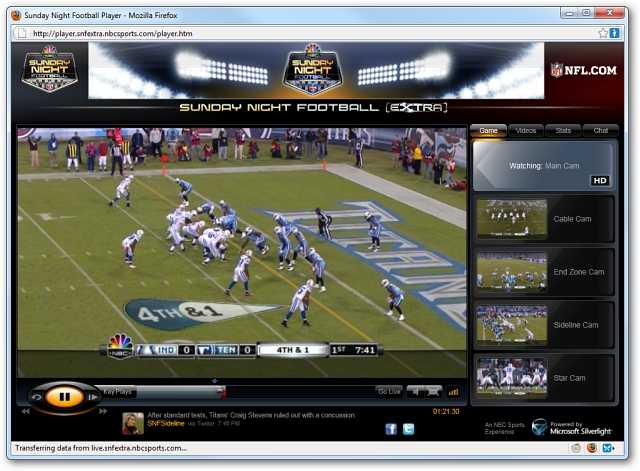
As seen above, NBC?s Sunday Night Football viewer offers multiple angles from which to catch each play:
- Cable Cam
- End Zone Cam
- Sideline Cam
- Star Cam
If you want to review a play, you can rewind and play one back as often as you?d like.

A sidebar gives an informative delineation of the statistics, by team and player.

Lastly, for those who tire of constant interruptions by commercials, watching through this viewer will see far less advertisements. In fact, during those breaks, you can still view the action on the field.
Matching the fun of crowding around the television with friends and food is near impossible, but this is an alternative that every fan of the sport should keep in mind — provided, of course, they have access to the internet.
Working on on both Mac and PC platforms, you can use NBC?s Sunday Night Football player here.
Oct 15, 2009 | Computer technology, General, News, Software
As any veteran of Microsoft?s Windows Operating System knows, the ALT-TAB function is a convenient way to immediately switch from one application to another, underscoring Windows? multi-tasking properties.
Like many features within Windows, while extremely functional, it doesn?t exactly lend itself to the overall appearance of the Windows platform. More important, the function can lead to frustration, with many people unsure of what ?window? they?re switching to.
However, for users of the latest versions of Windows (XP, Vista, and the recently unveiled Windows 7), a helpful and considerably more attractive utility would seem to supplant that rather basic command we?ve grown accustomed to using. Offering the same functionality, this tool takes the core feature of ALT-TAB and augments it to an impressive degree.

Instead of giving you a mere row comprised of the applications to select from, VistaSwitcher provides a sizable window, granting you a beautifully realized preview of what’s available. Use it just as you would ?ALT-TAB,? by pressing those very two keys to bring up the preview area.
VistaSwitcher also enables the following:
- By using the ?S? key after you?ve pressed ?ALT-TAB,? you can option more than one window for previewing, giving you a number of hot keys with which to manipulate their grouping ? C for cascade, V for Vertical, and H for Horizontal.
- When pressing ?CTRL-ALT-TAB,? you?ll be able to alternate between open windows within a single application. For instance, as someone who works on multiple writing projects at a time, hopping from one document to the next can quickly become tedious. With this utility, assuming all my documents are worked upon in one application (i.e., Microsoft Word), I?m granted the ability to easily switch from one window to the next in much the same way I would between multiple applications.
If you?d rather go with familiarity, you can always stay with the standard ?ALT-TAB? function. But for those of you looking to wring just a bit more from this oft-used function, VistaSwitcher is a great way to spruce up your use of Windows.
You can download VistaSwitcher here.
Oct 13, 2009 | Computer technology, General, News, Software

From the always innovative minds at Google, comes Google Wave,? a seminal offering that joins various web-based functions — instant messaging, email, social networking, wiki — to inspire and facilitate collaborative efforts.
With an emphasis on communication and teamwork, Google Wave houses multiple protocols within one package, promoting a thread of consistency between participants on a single project.
For a clearer demonstration on the functionality afforded by this new offering, visit here.
Invites to this service are always being introduced, though the wait can be lengthy.
Request an invitation here.
Oct 12, 2009 | Computer technology, News, Software
With email now the most common means of staying in touch, we often find ourselves swamped by the volume of messages received within the day. At their computers, users are engaged in any number of activities, email being something that many prefer to check on only occasionally.
For most email accounts, checking on the receipt of a new message requires you to open a web browser and log into your account. But one email service has introduced a neat application? that makes it easier to keep track of new messages.
Fast on its way to becoming the most popular solution for free email, Google’s Gmail continues to be the beneficiary of new updates that enhance its functionality.One such addition to its impressive list of features is a tool that notifies you of new messages even when you’re logged out of your account.
Seamlessly running in the background, Gmail Notifier alerts you whenever a new message has been received.
Installation is quick and easy, taking only a few steps. Once it’s finished, you will be asked to select a language:

You will then be prompted to sign into your account.

After you’ve logged in, Gmail Notifier remains in the background, occupying only your taskbar.

Right-clicking on the icon will bring up a list of options.

For instance, when selecting preferences, you can configure how you would like the tool to notify you.

Providing much of the same functionality you’ll find when logged into your actual account, the notifier allows you to manage your email? — read message, delete message, mark as read, etc.


Coming from the ingenious minds at Google, Gmail Notifier is a convenient and free tool that mitigates what can become an annoying routine.
Download it here!
