Oct 20, 2009 | Computer technology, General, Software
We?re all guilty of happening upon a website from which we?d like to quickly exit. Even if just the result of an inadvertently clicked link, our travels on the web will always consist of visits to sites which are best tucked in the remote corners of our memory.
If your internet adventures are taken with Firefox, here is a quick way to expunge from your browsing history those websites which you?d no sooner forget.
Two methods effectively address this need:
FIRST SOLUTION:
In the address bar, begin typing the name of the website. In the example below, we?re ridding ourselves of the ?CNN? url.

Even before the full address is typed out, you?ll notice that the website ? or several selections ? will drop immediately beneath the address bar. Highlight those selections you?d like deleted.
Once highlighted, press the ?delete? button on your keyboard. Doing so renders that site obsolete, as far as your browser is concerned, which becomes evident when attempting to type ?CNN? in the address bar again.
SECOND SOLUTION:
Slightly more involved than the first method, this process sees you open your ?history? window and review the entire history of your browser?s romps about the internet. To open it up, look at the menu bar, where you will select the ?History? option.

From that drop down, click on ?Show All History,? which opens the History Library Window.

As you?ll see, once opened, you can review your history in its entirety.

Looking at the history, you can select the website you?re seeking the removal of. Right clicking on the website will bring up a window that affords you the option to ?Forget About This Site.? Like before, we’ll use the “CNN” example.

After its removal, the only way that site will return to your browser?s history is if you return to the website.
While these two methods will successfully clear your history of any sites worth forgetting, it?s best to be mindful of where you?re visiting, should you ever find that you need to delete a?? website from your history.
Oct 19, 2009 | Computer technology, General, News, Software
Six games into the new NFL season, the contagious fanaticism of football season is upon us, from chatter at work to discussions amongst friends and family about how the teams are faring. As a devout follower of the NFL, having some means — any means — to watch the games goes without saying.
Thanks to the generous folks at NBC, Sunday Night Football is just a few keystrokes away.
While nothing quite tops the joy of watching a game in all its HD glory on your television, this new and free internet? service? offers a number of features that transcend the traditional viewing experience.
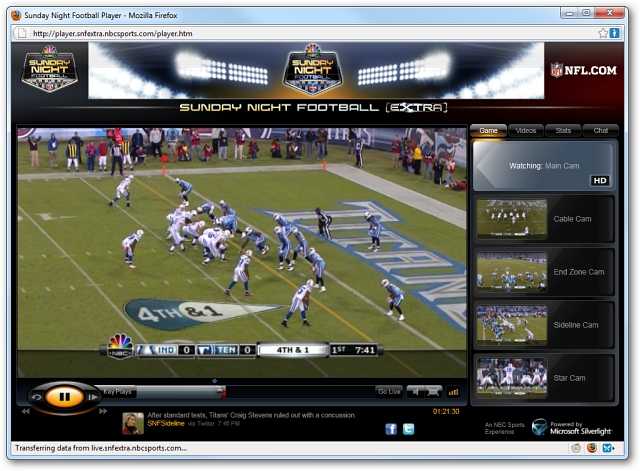
As seen above, NBC?s Sunday Night Football viewer offers multiple angles from which to catch each play:
- Cable Cam
- End Zone Cam
- Sideline Cam
- Star Cam
If you want to review a play, you can rewind and play one back as often as you?d like.

A sidebar gives an informative delineation of the statistics, by team and player.

Lastly, for those who tire of constant interruptions by commercials, watching through this viewer will see far less advertisements. In fact, during those breaks, you can still view the action on the field.
Matching the fun of crowding around the television with friends and food is near impossible, but this is an alternative that every fan of the sport should keep in mind — provided, of course, they have access to the internet.
Working on on both Mac and PC platforms, you can use NBC?s Sunday Night Football player here.
Oct 15, 2009 | Computer technology, General, News, Software
As any veteran of Microsoft?s Windows Operating System knows, the ALT-TAB function is a convenient way to immediately switch from one application to another, underscoring Windows? multi-tasking properties.
Like many features within Windows, while extremely functional, it doesn?t exactly lend itself to the overall appearance of the Windows platform. More important, the function can lead to frustration, with many people unsure of what ?window? they?re switching to.
However, for users of the latest versions of Windows (XP, Vista, and the recently unveiled Windows 7), a helpful and considerably more attractive utility would seem to supplant that rather basic command we?ve grown accustomed to using. Offering the same functionality, this tool takes the core feature of ALT-TAB and augments it to an impressive degree.

Instead of giving you a mere row comprised of the applications to select from, VistaSwitcher provides a sizable window, granting you a beautifully realized preview of what’s available. Use it just as you would ?ALT-TAB,? by pressing those very two keys to bring up the preview area.
VistaSwitcher also enables the following:
- By using the ?S? key after you?ve pressed ?ALT-TAB,? you can option more than one window for previewing, giving you a number of hot keys with which to manipulate their grouping ? C for cascade, V for Vertical, and H for Horizontal.
- When pressing ?CTRL-ALT-TAB,? you?ll be able to alternate between open windows within a single application. For instance, as someone who works on multiple writing projects at a time, hopping from one document to the next can quickly become tedious. With this utility, assuming all my documents are worked upon in one application (i.e., Microsoft Word), I?m granted the ability to easily switch from one window to the next in much the same way I would between multiple applications.
If you?d rather go with familiarity, you can always stay with the standard ?ALT-TAB? function. But for those of you looking to wring just a bit more from this oft-used function, VistaSwitcher is a great way to spruce up your use of Windows.
You can download VistaSwitcher here.
Oct 13, 2009 | Computer technology, General, News, Software

From the always innovative minds at Google, comes Google Wave,? a seminal offering that joins various web-based functions — instant messaging, email, social networking, wiki — to inspire and facilitate collaborative efforts.
With an emphasis on communication and teamwork, Google Wave houses multiple protocols within one package, promoting a thread of consistency between participants on a single project.
For a clearer demonstration on the functionality afforded by this new offering, visit here.
Invites to this service are always being introduced, though the wait can be lengthy.
Request an invitation here.
Oct 10, 2009 | Computer Repair, General, Software
Windows XP has many features and options.? Some of these features are simply eye-candy.? These can make the system look nicer but they add no functionality and actually slow the system down.? In this post I will show you how to use Microsoft’s Guided Help titled “How to set performance options in Windows XP.”?? On some systems this will increase performance up to 5%.? It can be very noticeable.? On others it wont be as noticeable, but still any increase you can get is worth it.
To start open up a new web browser window or tab and navigate to: http://support.microsoft.com/kb/308417.? You will see this:

Scroll down until you see this:

Click on the Download Guided Help link.? You should see this window next:

Click on the Run button.? Then wait until you see this window:

Click on the Run button here too.? You will then see this window:

Make sure This Computer is selected and click the Next button.

Click on the text for Do it automatically.? Wait for the guided process to get to this next window before doing anything else.

Select “Adjust for best performance” and then click the Next button on the little Guided Help window.? Wait for the screen to look like this:

Now you should already have Programs selected, if not then select that option.? Hit the Next button on the Guided Help window.? It will move down to the next option.

Again Programs should already be selected for you, but if isnt then select it.? Hit the Next button on the Guided Help window again.

This window should have the right opton selected as well.? Just make sure No is selected and hit Next.

It should take between a few seconds and a minute for you to see a screen that looks like that.? You will notice all the pretty blue and green graphics are gone and everything is back to the standard windows grey.? Click the Continue button on the Guided Help window.

At this point your done, you can click the Ok button and close the website.? For best results you should reboot at this time.
Now you should have a slightly more optimized system thanks to Microsoft and Geek Choice.? For more performance gains and other helpful support don’t hesitate to call Geek Choice.
In the next installment I will show you a simple tool for removing unneeded startup items automatcally.
Oct 1, 2009 | Computer Repair, General, Malware, News
Geek Choice is always staying on top of the latest malware to emerge from underbelly of the internet. In addition to providing the best onsite technical assistance in this industry, we pride ourselves on alerting you to the latest pests to watch out for.
Most recently, hapless internet users have fallen prey to the URLZone Trojan, a decidedly nasty bug that rewrites their online bank statements to conceal fraud.
This bug is tucked away on websites ? many of them legitimate ? with the Luckyspoilt toolkit. Unbeknownst to visitors of these websites, bogus .PDF files or Javascripts traffic the URLZone Trojan onto their computers.
Once planted on the victim’s system, the bug begins to record keystrokes that are performed whenever they’re logged into their online bank account, pairing that with screenshots it takes of the user?s activity while they navigate the account. ?This information is then fed to the source of the bug, a command and control center located ?in the Ukraine.
With your information in their possession,? the perpetrators of this fraud transfer money from the user?s account. After the theft, the Trojan forges a bank statement to deceive the user into believing their account is not compromised, always ensuring that their online bank statement reflects a positive balance.
A more in-depth overview of this threat and its implications can be found here.
Geek Choice always advises its clients to exercise vigilance when browsing the internet. If you think your computer has been compromised by malware, call our offices immediately.


